Why my home server runs on a spare MacBook
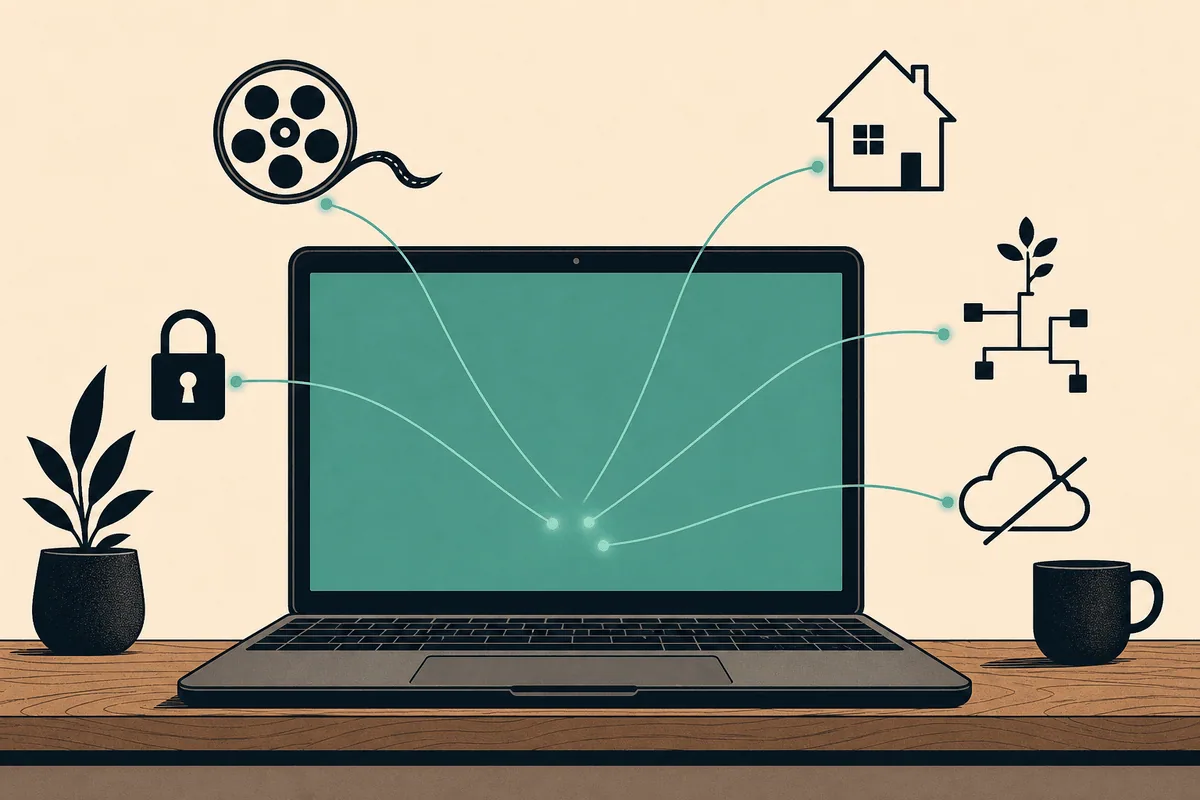
The most sensitive server in my house is a retired MacBook sitting open on a shelf. It holds my family photos, password vault, bank history, home automation, and my daughter's school-week scripts, and not one port is exposed to the public internet. It is a 2021 MacBook Pro with an M1 Pro, 16 GB of RAM, and a roughly 460 GB internal SSD: still a genuinely fast computer that I had stopped using for the one thing laptops are sold for. Now it does more work than it ever did as my daily driver. It runs my media library, my photos, my password vault, my home automation, a local language model, and a small pile of scripts that quietly track my money and my daughter's school week.
This is the first part of a series about that machine: how I set it up, how I actually use it, and what it does all day. The short version of the thesis, which the rest of the series has to earn: you do not need a cloud server or a dedicated NAS to run a serious amount of self-hosted software. A spare Apple Silicon laptop and a mesh VPN get you most of the way, and they keep your data on hardware you can physically see.
TL;DR
Running a self-hosted home server on a spare MacBook with Apple Silicon is a practical alternative to a VPS or dedicated NAS. The core constraint is that nothing is exposed to the public internet: all access goes through a Tailscale mesh VPN, with Caddy handling TLS and friendly hostnames on the private network only. A single Docker Compose directory managed with OrbStack runs roughly 25 containers covering media, photos, passwords, and home automation on an M1 Pro that handles transcoding, vector search, and local LLM inference simultaneously. The tradeoffs are real, including a single-disk failure domain and macOS operational quirks, but for personal data you want on hardware you can physically see, a spare MacBook home server is a serious setup.
The bet: a laptop at home, not a box in a datacenter
The obvious way to self-host is to rent a VPS. It stays on, it has a public IP, and somebody else worries about the power and the network. I went the other way on purpose, and the reasoning is the whole point of the project.
The data I most wanted to self-host is the data I least wanted on someone else's computer: family photos, a password vault, bank-transaction history, and a small app that shows my daughter's school schedule and the location of her school bus. Putting that on a rented box, behind a public IP, means it is one misconfiguration away from the open internet. The threat model for a personal server is not a sophisticated attacker. It is me, at 11pm, fat-fingering a firewall rule. Private-by-default does not make me a better administrator. It removes the class of mistake where a public port quietly leaks private data, because there is no public port to leak from.
So the architecture starts from a single constraint: nothing is exposed to the public internet. Connections arrive over a private mesh VPN (Tailscale, which is WireGuard underneath), which means only devices already enrolled in the network can attempt a connection. A scan of the public internet turns up nothing, because there is nothing there to find. That private-networking choice is the same bet behind How I reach a home server with no public address, only this time the machine is doing the whole household's work.
That constraint cascades into every later decision. A reverse proxy still terminates TLS, because I wanted real certificates and friendly hostnames instead of memorizing ports, but it listens only on the tailnet. Caddy holds a wildcard certificate for one domain, so each service answers at its own name like jellyfin.home.example.dev with a real lock icon and no port to remember. Behind it, service-to-service traffic never leaves the host: the containers sit on a single Docker bridge network and talk to each other by container name. The laptop's own login password is the last line of defense, not the first, because the first line is "you are not on my VPN, so you cannot see this machine."
To make that path concrete, here is what happens when I open Jellyfin on my phone from outside the house:
The public internet is absent from that diagram on purpose. The WireGuard tunnel is established before DNS resolves, TLS terminates at Caddy on the tailnet IP, and the Jellyfin container binds only to the Docker bridge. A request that does not arrive over the VPN cannot reach the first hop.
Why a spare MacBook home server works here
A Raspberry Pi is the traditional answer, and it is a fine one until you ask it to transcode video, run a vector database for photo search, and hold a language model in memory at the same time. The M1 Pro does all of that without noticing. It has a real SSD, real memory bandwidth, a capable GPU for local inference, and it sips power compared to a desktop. It also has a battery, which is a small uninterruptible power supply I did not have to buy: a brief outage does not take the server down, and macOS reports the state of charge like any other laptop, so a power blip is a logged event rather than a hard stop.
The specific software runtime matters more than it looks. Running Docker on a Mac used to mean Docker Desktop, which is heavy. I run OrbStack instead, a lightweight Docker-and-Linux runtime for macOS that starts fast and stays out of the way. Its bind-mount file sharing between macOS and the Linux VM is markedly faster than Docker Desktop's, which matters when twenty-five containers are reading and writing config under one home directory. It also integrates with the host network in a way that surfaces later in the series, around IPv6 and the conspicuous absence of a daemon.json to hand-edit. The handful of things that genuinely want to be native (the local-model server, for example) run directly on macOS and get bridged into the container network through the host gateway. That split, containers for nearly everything and native for the few exceptions, is a recurring theme later in the series.
The whole stack lives in one directory, ~/selfhost/, and the layout is deliberately boring: a single docker-compose.yml, one config subdirectory per service so each app owns its own state, and an .env file (chmod 600) that holds the secrets the Compose file reads. Env-var names live in the Compose file; their values live only in that one file with its permissions locked down. Roughly twenty-five containers come up from that one file. The images that come from linuxserver.io all run as the same unprivileged user, PUID=501 and PGID=20, with TZ set to my timezone so logs and schedules line up with the wall clock, and they share a single media bind mount rather than each carrying its own copy. Sharing one user and one mount is what lets Jellyfin, the *arr suite, and qBittorrent all see the same files without a tangle of permissions. None of this is exotic. The server is one git-able directory and one VPN away from reproducible: lose the laptop and the recovery story is a fresh OrbStack install, that directory, and the secrets restored from a backup.
What actually runs on it
The machine started as a media box and quietly turned into the household's back office. A rough inventory of the named services, before the long tail of background jobs:
| Service | Role |
|---|---|
| Jellyfin | Media server (the original reason this existed) |
| Immich | Photo and video library, with on-device search |
| Radarr / Sonarr | Movie and TV library management |
| Prowlarr / Bazarr | Indexer management and subtitles |
| qBittorrent | The download client the *arr suite drives |
| Vaultwarden | Self-hosted password vault |
| Home Assistant | Home automation and device hub |
| Glance | Single-pane dashboard for the whole stack |
| LM Studio | Local LLM, served natively and bridged in |
That is the part you can point at in a UI. The part that turned it from a media box into something useful is less visible: roughly twenty launchd jobs, the macOS equivalent of cron, running on the host. They pull bank-transaction history into a ledger, scrape the school timetable, and stitch together a summary of the week. They run native rather than in a container because they need to touch the host, talk to the local model over the gateway, and be scheduled by the operating system that will be awake anyway. launchd is powerful and badly documented, and a later part is mostly the story of fighting it. I wrote more about that operating-system layer in Running background jobs on macOS with launchd, because it is where the laptop stops feeling like an appliance and starts feeling like a machine you have to negotiate with.
A spare laptop is not a compromise NAS. It is a quiet, fast, battery-backed computer you already own, and the only thing stopping it from being a server is the assumption that servers live in racks.
The honest cost: a decision framework, not just a parts list
I am not going to pretend this is free of sharp edges, because the interesting parts of the series are mostly the sharp edges. But rather than listing them as warnings, it is more useful to name the axes you actually need to evaluate before committing to this kind of setup.
Privacy boundary. This setup draws a hard line: no public address, VPN-only access. If you need to share anything with people outside your network (a Nextcloud for a collaborator, a public-facing app), you will need a second architecture for that surface. This machine does not do it.
Operational burden. macOS does not want to be a server. It wants to sleep, it revokes a binary's disk permissions when you replace the file, and its idea of a background service (launchd) is powerful and badly documented. Running a server on a general-purpose OS means trading a simpler hardware story for a more fiddly software one.
Storage and failure domain. At roughly 460 GB, the media library, photo originals, and every service database share one volume. One disk, one failure domain. Backups are not optional, and the disk fills faster than you would like. This is the constraint the single-disk reality imposes, and it does not go away.
Performance headroom. The M1 Pro has real CPU, memory bandwidth, and GPU for local inference. For a household workload it is comfortably over-provisioned today. What it does not have is an upgrade path: you cannot add a second drive, more RAM, or a discrete GPU later.
Recovery path. One git-able directory plus secrets backup means recovery is a fresh OrbStack install plus restore. That is a fast story on familiar hardware. On unfamiliar hardware, or after a logic-board failure, it takes longer.
Recurring cost. No cloud bill, no VPS fee, no NAS subscription. The cost is electricity (low for Apple Silicon) and the time you spend operating it yourself. That tradeoff is the whole point of this project.
If those axes come out in your favor, the rest of this series is for you. If the single-disk failure domain or the macOS operational quirks are blockers, a dedicated NAS or a small VPS may be a better fit, and the networking approach (Tailscale, Caddy, wildcard TLS) still applies either way.
The next part is the piece that makes the "nothing is public" bet practical: how a mesh VPN, a wildcard certificate, and one reverse proxy turn a laptop with no public address into jellyfin.home.example.dev that loads instantly on my phone, with a real lock icon, from anywhere. Later parts go deeper into the *arr suite and Immich, the launchd jobs that do the money-and-week tracking, the local model, and the backup story that the single disk forces on me.
Decide what your server is for before you decide what it runs. Mine is for keeping the data I care about on hardware I control, reachable only by me. Every choice after that (the VPN-only networking, the laptop over the VPS, the one-directory stack, the backups) falls out of that one sentence.
FAQ
Why use a MacBook as a home server instead of a Raspberry Pi or NAS?
The M1 Pro can transcode video, run a vector database for photo search, and hold a local language model in memory at the same time without breaking a sweat, which a Raspberry Pi cannot. It also has a built-in battery that acts as a small UPS, so brief power outages do not take the server down.
How do I access a home server with no public IP address from outside my house?
A mesh VPN like Tailscale (built on WireGuard) lets only enrolled devices connect, so the server has no public address and is invisible to internet scans. A reverse proxy like Caddy then terminates TLS on the private tailnet, giving each service a real hostname and a valid certificate.
Is OrbStack better than Docker Desktop for running containers on a Mac server?
For a always-on home server workload, OrbStack starts faster, uses fewer resources, and has markedly faster bind-mount file sharing between macOS and the Linux VM than Docker Desktop. It also integrates more cleanly with the host network, which matters when many containers are reading and writing config continuously.
What are the main downsides of using a MacBook as a home server?
The biggest limitations are a single-disk failure domain (no expandable storage), no upgrade path for RAM or drives, and macOS quirks like aggressive sleep defaults and a powerful but poorly documented launchd scheduler. Anyone who needs to share services publicly or wants redundant storage should evaluate a NAS or VPS instead.
How do I organize Docker Compose services for a self-hosted home server?
One practical layout is a single docker-compose.yml with one config subdirectory per service, an .env file (chmod 600) holding all secrets, and all linuxserver.io images running under the same unprivileged PUID and PGID so they share a single media bind mount without permission conflicts. That structure is git-able and makes recovery a fresh container runtime install plus a directory restore.